Installing a messaging app is easy; making it dependable throughout a busy day takes a little more care. On Huawei phones used abroad, Messenger sits alongside local banking, transport, delivery, and work apps, all competing for data and background access. This guide explains how to configure Huawei Messenger without weakening security or wasting time on unnecessary fixes.
Install or update the official app
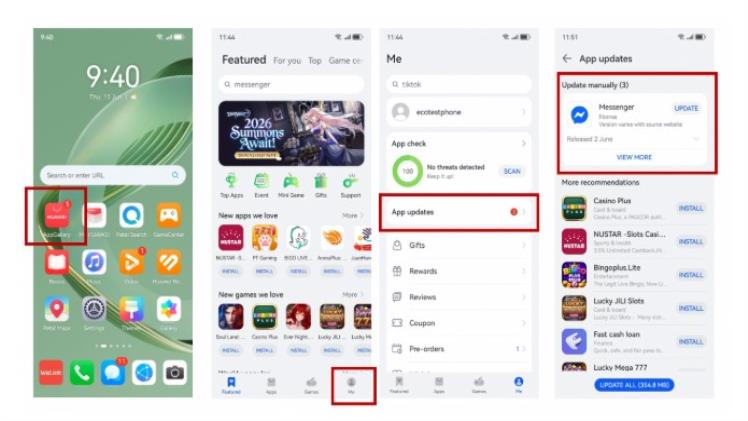
Start in HUAWEI AppGallery and search for Messenger by name. Check the publisher, then install the available version or tap Update. Use a stable connection and keep enough storage free for both the download and temporary installation files.
If the app is already current, focus on its permissions and system controls. Reinstalling the same version will not solve a blocked notification channel or restricted background process.
Set the permissions you actually use
Messenger may need access to the microphone and camera for calls, photos for sharing media, and notifications for incoming chats. Contacts access is optional for some users and should be enabled only when it supports the way you use the app.
A clean Huawei Messenger setup is not about granting every permission. It is about allowing the functions you need while leaving unrelated access disabled.
Protect message delivery
Open Settings > Notifications > Messenger and turn on alerts, including lock-screen display and sounds where appropriate. Next, review Settings > Battery > App launch. Allow auto-launch, secondary launch, and background activity if these options are available on your device.
When messages appear only after opening the app, search for Battery optimization and stop the system from restricting Messenger. Also check Data Saver and any system-wide power-saving mode.
Troubleshoot in the right order
Test the internet connection first, then the app version, notifications, background activity, and mobile-data permissions. Clear the app cache if performance is unstable. Restart the phone after changing several system settings so the new rules take effect cleanly.
Only reinstall after confirming your login and recovery options. Avoid unofficial APK mirrors, since altered or outdated packages may introduce security risks and make future updates harder.
Make Messenger part of a stable app setup
Use the same source order for other overseas apps: AppGallery first, the provider’s official website or web app second, and a compatibility method only when necessary. This keeps updates easier to manage and reduces the chance of installing modified software.
For a visual summary of the update and notification checks, refer to the Huawei Community page for Huawei Messenger.